Excel Lesson Plan - Expense Budget with Chart
Assignment: Students create a clothing expense spreadsheet budget with chart. Students use a shopping list to buy some clothes and tally their expenses. Students create a chart illustrating their clothing purchases and expenses.
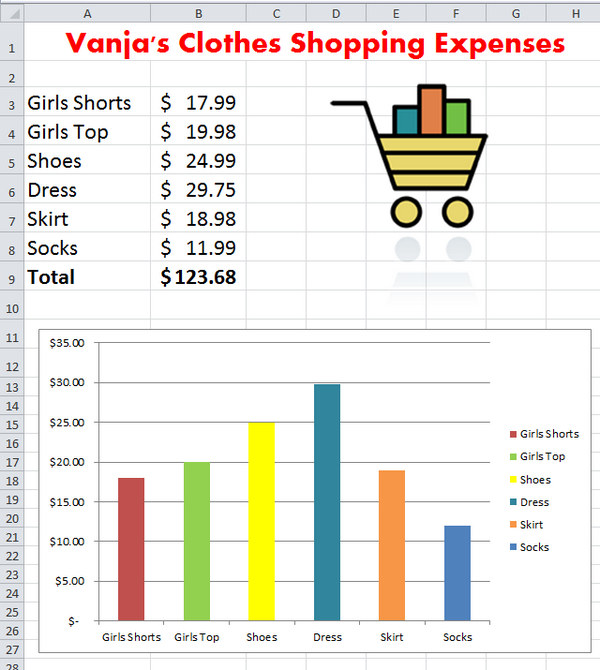
Download: excel-clothing-expenses-with-chart-finished-example.xlsx
Excel Clothing Expense Budget & Chart - Finished Example
Download: excel-clothes-shopping-price-list.pdf
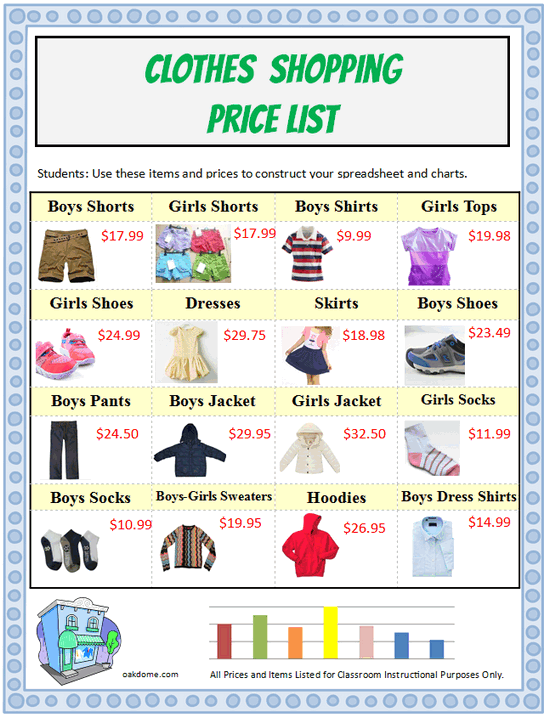
Clothes Shopping Price List:
Students choose items from this list for their spreadsheet entries.
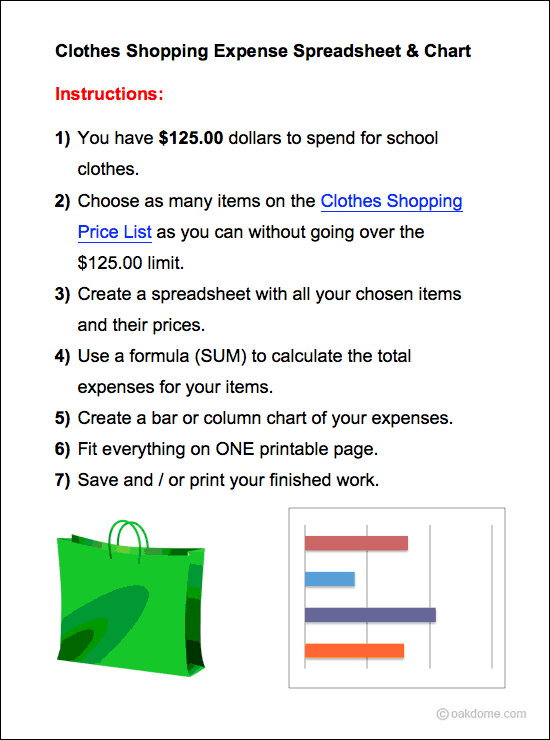
Download: student-instructions-clothes-shopping-expenses.docx
Student Instructions
Excel Mini-Course in 4 Minutes:

Quickly learn the essentials you need for this lesson with these short, focused video tutorials. Watch all the videos to see how to create a budget and chart from start to finish or just watch the ones you need.
Students Learn and Practice
the Following Basic Spreadsheet Skills:
- Creating and formatting a spreadsheet title using "merge and center"
- Entering data in columns and rows
- Using the simple formula "Autosum" to automatically calculate total expenses
- Formatting numbers as currency and adding $ signs.
- Creating a chart using the expense data entered.
- Using different colors for chart segments to improve visual presentation
- Creating, sizing, and positioning the chart to fit on a single page with the data
- Searching, inserting, sizing, and positioning clipart or pictures
- Using print preview and printing
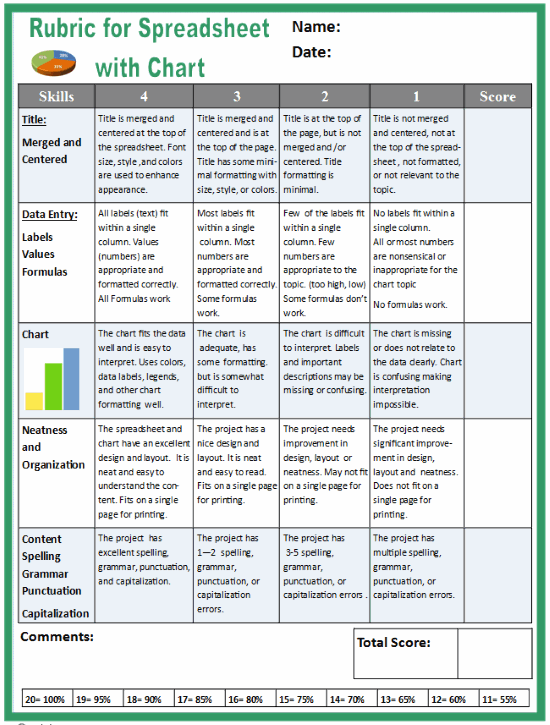
Download: rubric-for-spreadsheet-with-chart.pdf
Excel Spreadsheet Rubric for Grading Assignments
Excel Spreadsheets and Charts
-
Simple
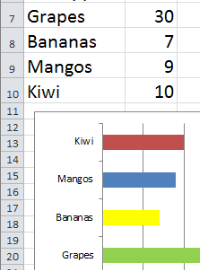
Bar Chart![Excel Simple Bar Chart]()
-
Thanksgiving
Dinner Shopping![Thanksgiving Dinner Shopping Comparison Spreadsheet]()
-
Clothes
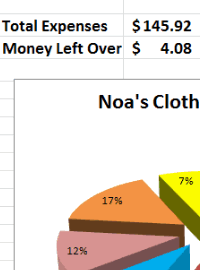
Shopping Budget![Excel Clothes Shopping Budget]()
-
Learn Excel
in Minutes![Learn Excel in Minutes]()
-
Excel Back
to School![Excel Back to School]()
-
Excel Pet
Adoption![Excel Pet Adoption]()
-
Excel
Sports Budget![Excel Sports Budget]()
-
Excel
M & M Chart![Excel M & M Chart]()
-
Excel
Lemonade Stand![Excel Lemonade Stand Spreadsheet and Chart]()