Grade Level Lesson Plans Poem Generators Excel Word PowerPoint MultiMedia Internet Research Tech Coordinator Tutorials Video Reversal Video Tutorials iPad Lesson Plans iWork Keynote iWork Pages iWork Numbers Mac Multimedia Resources
Search This Site
Custom Search

Excel Lesson Plan - M&M Chart

This Excel Lesson Plan Teaches Users How to Create and Format a Simple M&M Chart

The instructions are for Microsoft Excel 2007 version, but the data and chart can be recreated using any of the various Excel versions or even non Microsoft variants. I have used this successfully with 2nd and 3rd graders, but your mileage may vary.


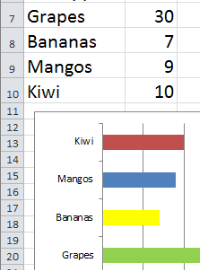
This lesson builds on the Excel Bar Chart lesson by adding the following requirements:


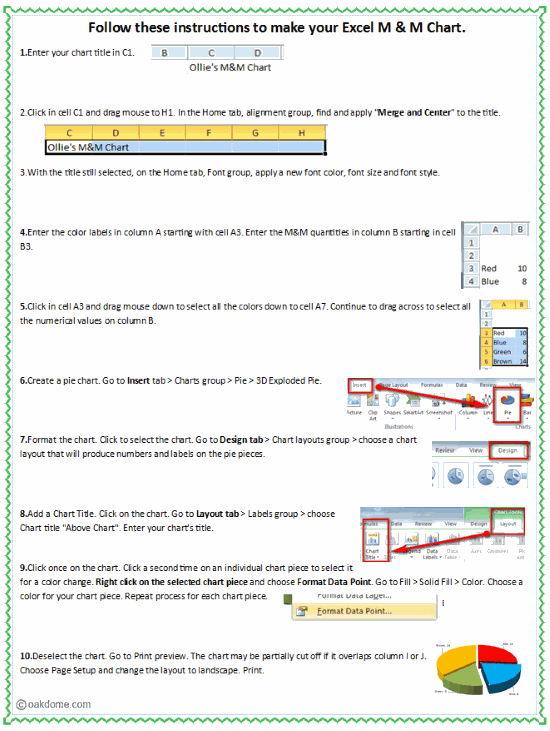
Follow these instructions to make your Excel M & M Chart.

  1. Enter your chart title in C1.

  2. Click in cell C1 and drag mouse to H1. In the Home tab, alignment group, find and apply "Merge and Center" to the title.

  3. With the title still selected, on the Home tab, Font group, apply a new font color, font size and font style.

  4. Enter the color labels in colum A starting with cell A3. Enter the M&M quantities in column B starting in cell B3.

  5. Click in cell A3 and drag mouse down to select all the colors down to cell A7. Continue to drag across to select all the numerical values on column B.

  6. Create a pie chart. Go to Insert tab > Charts group > Pie > 3D Exploded Pie.

  7. Format the chart. Click to select the chart. Go to Design tab > Chart layouts group > choose a chart layout that will produce numbers and labels on the pie pieces.

  8. Add a Chart Title. Click on the chart.Go to Layout tab > Labels group > choose Chart title "Above Chart". Enter your chart's title.

  9. Click once on the chart. Click a second time on an individual chart piece to select it for a color change. Right click on the selected chart piece and choose Format Data Point. Go to Fill > Solid Fill > Color. Choose a color for your chart piece. Repeat process for each chart piece.

  10. Deselect the chart. Go to Print preview. The chart may be partially cut off if it overlaps column I or J. Choose Page Setup and change the layout to landscape. Print.


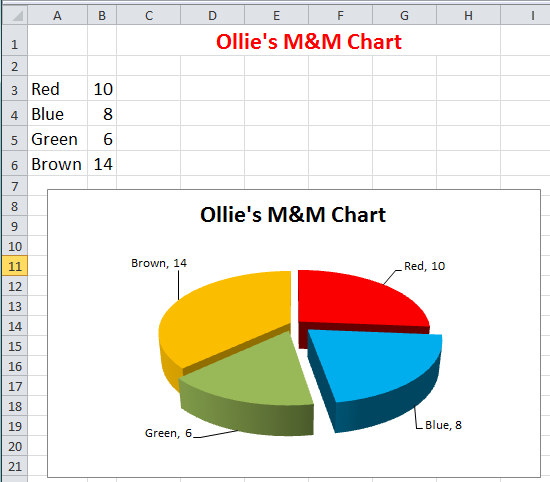
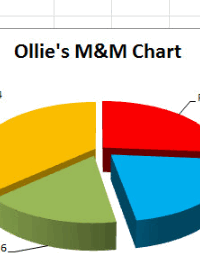
Excel M&M Chart:

Excel M&M chart example.


Variation for a chart that can be hand colored:


Excel chart no colors


1) Moving the data labels to the outside:

Click the chart to select it. Then Chart Tools > Layout > Data Labels.


Move data labels outside


2) Adding the border:

Click the chart to select it. Right click on the chart and select Format Data Series. Choose Border Color and Solid Line.

Add borders to excel pie chart


3) Remove the fill colors:

Choose Fill and No Fill.

Excel chart removing the fill color