First Grade Computer Lesson Plans - Qtr. 1
Typing Practice and Word Processing Skills
First Grade Qtr.1 technology lessons emphasize a strong focus on typing practice and developing essential word processing skills.
First graders will practice typing using proper home row technique.
First graders will also develop and improve their word processing skills. They will write short sentences using proper spelling, capitalization, punctuation, and word spacing.
Students will learn to illustrate their text with shapes, clipart, or images. They will learn to position and appropriately size those objects within their text. Students may learn to print / save their documents.
Recommendations:
- Typing Lessons: Focus on typing accuracy, proper finger placment, not speed. Speed will be acquired naturally over time in the future months and years of typing lessons.
- Word Processing: Students work to gain proficiency and speed using a word processor to write and illustrate with sentences, shapes and clipart. Students will practice with narrative, informative, and opinion writing styles. These are "guided" writing exercises that students will copy either exactly or very closely. Generally, this avoids students struggling with ideas, indecision, or spelling problems that slow or prevent progress to completion.
- File Distribution: Share assignment files using a cloud storage service, your school's learning management system or a shared network drive on your school's internal network.
- Enrichment: Use the enrichment activities to support regular classroom curricula. Good for early finishers, late arrivals, supplementation, differentiation.
- Time Management: These weekly lessons are programmed for 2 weekly sessions of 45 minutes each. Adjust the activity selections according to your own needs.
First Grade Technology Lesson Schedule:
First Quarter - August ~ October
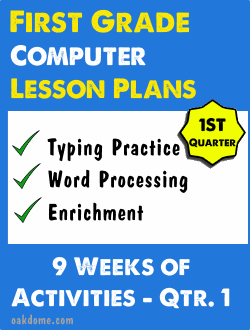
Main Topics Covered: Homerow Typing and Word Processing (text and clipart)
9 Sessions = ( Typing with fingers on home row - no pecky typing)
5 Sessions = ( Word Processing - informative and opinion texts - writing simple sentences and adding illustrations)
Prerequisites: Typing program, internet access, word processor.
Week 1 - Qtr. 1:
Sessions 1 & 2:
Do Introductions - Introduction to the computer lab teacher, discuss what we will do in the lab. Spend time getting to know the students.
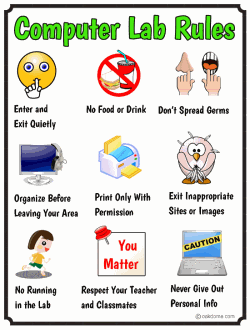
Explain Computer Lab Rules - Discuss the rules of the computer lab, talk about how to sit in the chairs, raising hand to go to the bathroom, taking a buddy with you to the bathroom, washing hands before returning from bathroom.
Discuss keeping hands to oneself, no running in the lab, keeping fingers out of mouth and nose. Following the same rules as in the regular classroom .
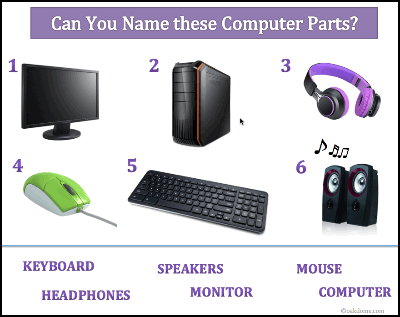
Review Computer Parts Names - Briefly review the names of the main computer parts such as monitor, keyboard, mouse, CPU and others as necessary.
Download Printable Version: can-you-name-these-basic-computer-parts.pdf
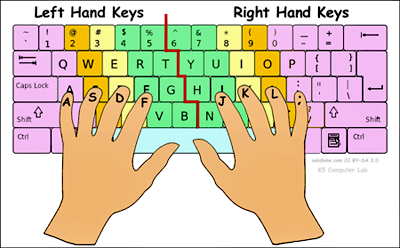
Review of Typing Stage 1: Demonstrate how to use Dance Mat Typing stage one, level one ( ASDF, JKL; and G, H ). Start at the beginning lessons if you use a different typing program. Review the homerow and proper finger technique.
Download: proper-keyboard-finger-placement-on-the-keyboard.pdf
-
Assign Typing Practice
Students review typing skills from Kindergarten using one or more of the following: Keyboard Zoo, Type Rocket Jr., Keyboard Climber 2.
Students type about 20-25 minutes.
- Enrichment - Work on these activities after typing.



Week 2 - Qtr. 1:
Sessions 1 & 2: Typing and Enrichment
Assign Typing Practice: - Assign 20-30 minutes or until done. Students do enrichment activities after typing.
All typing practice lessons available HERE.
- Students: Do these TWO typing lessons.
- Enrichment - Do these enrichment activities after typing.


Week 3 - Qtr. 1:
Sessions 1 & 2: Typing and Enrichment
Assign Typing Practice: - Assign 20-30 minutes or until done. Students do enrichment activities after typing.
All typing practice lessons available HERE.
- Students: Do these Three typing lessons.
- Enrichment - Do these enrichment activities after typing.



Week 4 - Qtr. 1:
Sessions 1 & 2: Typing and Enrichment
Assign Typing Practice: - Assign 20-30 minutes or until done. Students do enrichment activities after typing.
All typing practice lessons available HERE.
- Students: Do any Three of these typing lessons.
- Enrichment - Do these enrichment activities after typing.



Week 5 - Qtr. 1:
Session 1: Typing and Enrichment
Assign Typing Practice: - Assign 20-30 minutes or until done. Students do enrichment activities after typing.
All typing practice lessons available HERE.
- Students: Do any Three of these typing lessons.
- Enrichment - Do these enrichment activities after typing.


Week 5 - Qtr. 1:
Session 2: Word Processing and Enrichment
Review the Word Processor - Review how to open and close the program. Review backspace, enter, shift, undo key. Demo how to name and save a document.
- Choose a Word Processing Assignment for Students:
- Enrichment - Work on these enrichment activities when finished.
Students write a few sentences, change font size and add their name. Students use proper capitalization, proper word spacing and punctuation. Teach students how to use clipart if you have it. Students may add one shape or clipart image. Students print and /or save their documents.
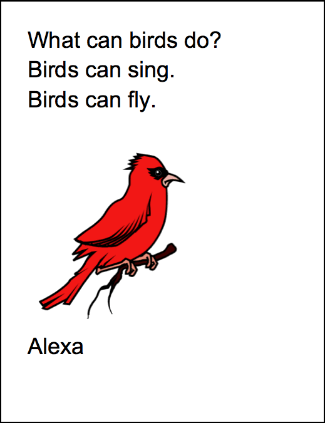
Download - what-can-birds-do-CC-informative.docx
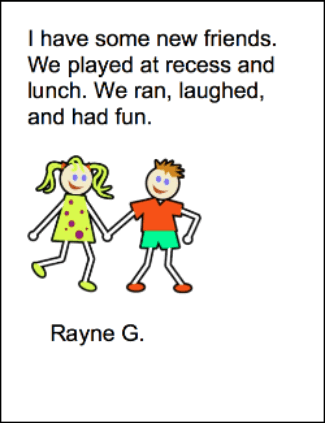
Download - i-have-some-new-friends-CC-narrative.docx
Need More? More Word Processing Practice for Kinder and First Graders
Alternate: Word Processing - Create your own sentences for students to write using First Grade Dolch Sight Words.
Week 6 - Qtr. 1:
Session 1: Typing and Enrichment
Assign Typing Practice: - Assign 20-30 minutes or until done. Students do enrichment activities after typing.
All typing practice lessons available HERE.
- Students: Do any Three of these typing lessons.
- Enrichment - Work on these enrichment activities when finished.
Need More? More Word Processing Practice for Kinder and First Graders
Alternate: Word Processing - Create your own sentences for students to write using First Grade Dolch Sight Words.
Week 6 - Qtr. 1:
Session 2: Word Processing and Enrichment
Review the Word Processor - Review how to open and close the program. Review backspace, enter, shift, undo key. Demo how to name and save a document.
- Choose a Word Processing Assignment for Students:
- Enrichment - Work on these enrichment activities when finished.
Students write a few sentences, change font size and add their name. Students use proper capitalization, proper word spacing and punctuation. Teach students how to use clipart if you have it. Students may add one shape or clipart image. Students print and /or save their documents.
Download - how-do-birds-grow-CC-Informative.docx
Download - where-do-birds-live-CC-informative.docx
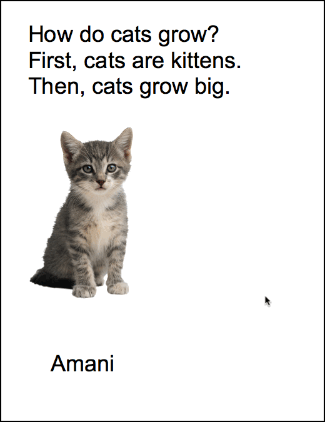
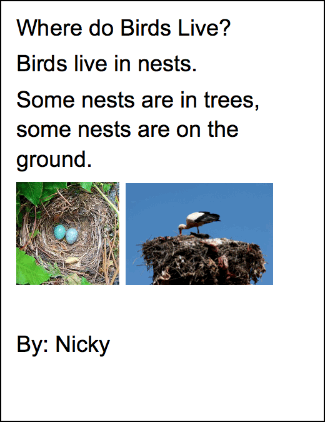
Need More? More Word Processing Practice for Kinder and First Graders
Alternate: Word Processing - Create your own sentences for students to write using First Grade Dolch Sight Words.
Week 7 - Qtr. 1:
Session 1: Typing and Enrichment
Assign Typing Practice: - Assign 20-30 minutes or until done. Students do enrichment activities after typing.
All typing practice lessons available HERE.
- Students: Do any Three of these typing lessons.
- Enrichment - Work on these enrichment activities when finished.
Need More? More Word Processing Practice for Kinder and First Graders
Alternate: Word Processing - Create your own sentences for students to write using First Grade Dolch Sight Words.
Week 7 - Qtr. 1:
Session 2: Word Processing and Enrichment
Review the Word Processor - Review how to open and close the program. Review backspace, enter, shift, undo key. Demo how to name and save a document.
- Choose a Word Processing Assignment for Students:
- Enrichment - Work on these enrichment activities when finished.
Students write a few sentences, change font size and add their name. Students use proper capitalization, proper word spacing and punctuation. Teach students how to use clipart if you have it. Students may add one shape or clipart image. Students print and /or save their documents.
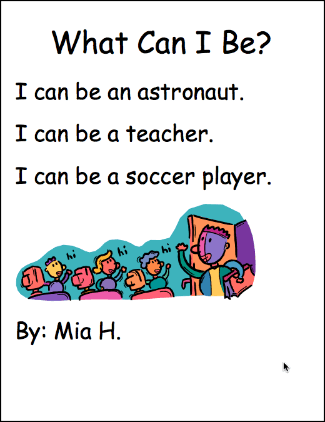
Download - what-can-i-be-opinion.docx
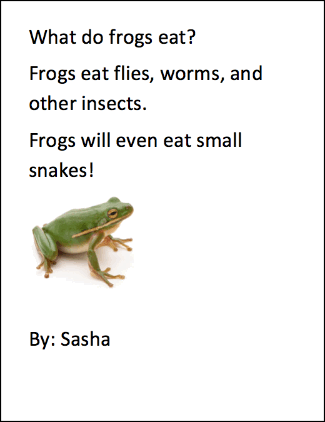
Download - what-do-frogs-eat-informative.docx
Need More? More Word Processing Practice for Kinder and First Graders
Alternate: Word Processing - Create your own sentences for students to write using First Grade Dolch Sight Words.


Week 8 - Qtr. 1:
Session 1: Typing and Enrichment
Assign Typing Practice: - Assign 20-30 minutes or until done. Students do enrichment activities after typing.
All typing practice lessons available HERE.
- Students: Do any Three of these typing lessons.
- Enrichment - Work on these enrichment activities when finished.
Need More? More Word Processing Practice for Kinder and First Graders
Alternate: Word Processing - Create your own sentences for students to write using First Grade Dolch Sight Words.
Week 8 - Qtr. 1:
Session 2: Word Processing and Enrichment
Review the Word Processor - Review how to open and close the program. Review backspace, enter, shift, undo key. Demo how to name and save a document.
- Choose a Word Processing Assignment for Students:
- Enrichment - Work on these enrichment activities when finished.
Students write a few sentences, change font size and add their name. Students use proper capitalization, proper word spacing and punctuation. Teach students how to use clipart if you have it. Students may add one shape or clipart image. Students print and /or save their documents.
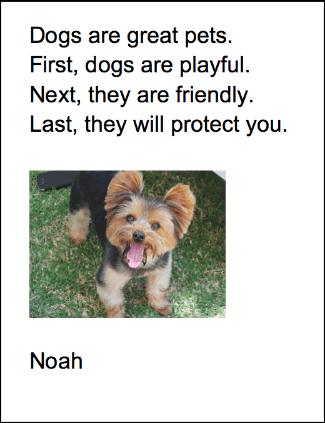
Download - dogs-are-great-pets-opinion.docx
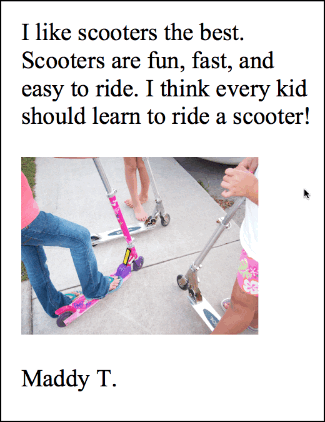
Download - i-like-scooters-the-best-opinion.docx
Need More? More Word Processing Practice for Kinder and First Graders
Alternate: Word Processing - Create your own sentences for students to write using First Grade Dolch Sight Words.
Week 9 - Qtr. 1:
Session 1: Typing and Enrichment
Assign Typing Practice: - Assign 20-30 minutes or until done. Students do enrichment activities after typing.
All typing practice lessons available HERE.
- Students: Do any Three of these typing lessons.
- Enrichment - Work on these enrichment activities when finished.
Need More? More Word Processing Practice for Kinder and First Graders
Alternate: Word Processing - Create your own sentences for students to write using First Grade Dolch Sight Words.

Week 9 - Qtr. 1:
Session 2: Word Processing and Enrichment
Review the Word Processor - Review how to open and close the program. Review backspace, enter, shift, undo key. Demo how to name and save a document.
- Choose a Word Processing Assignment for Students:
- Enrichment - Work on these enrichment activities when finished.
Students write a few sentences, change font size and add their name. Students use proper capitalization, proper word spacing and punctuation. Teach students how to use clipart if you have it. Students may add one shape or clipart image. Students print and /or save their documents.
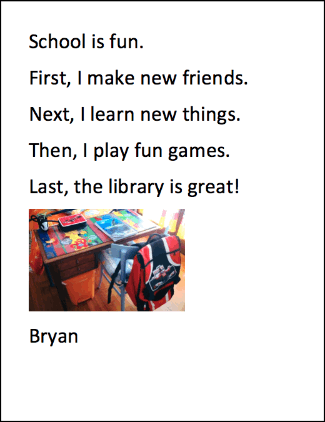
Download - school-is-fun-opinion.docx
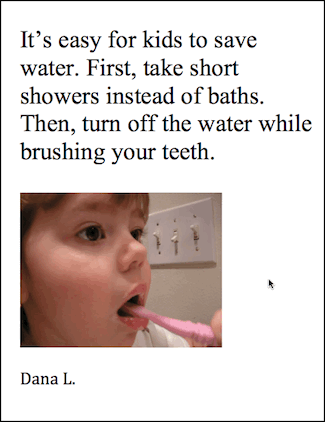
Download - kids-can-save-water-informative.docx
Need More? More Word Processing Practice for Kinder and First Graders
Alternate: Word Processing - Create your own sentences for students to write using First Grade Dolch Sight Words.