Put Your Head on A Different Body - 3 Steps
Assignment: Have Some Fun! Switch Your Head to Another Body! Students will combine the head of one picture into another picture with a different body. Students will use several simple photo editing tools including the cropping tool to crop the head, the magic wand and eraser to remove the background from the head shot, and the layers feature to place the headshot layer over the body layer. Students will also learn that .png image files can used to retain the transparent background of the headshot image.
Download: head-switch-instructions.pdf
The free photo editing / paint program Paint.Net is used for this exercise.
Download: Paint.NET
-
Before Head Switch:

-
After Head Switch

Step One:
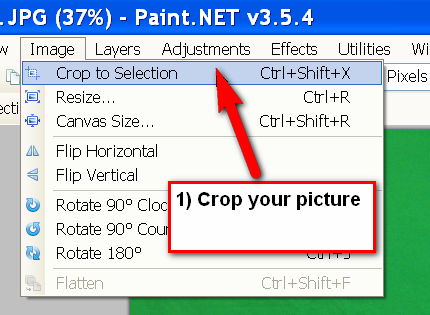
Open a picture of yourself in Paint.NET. Draw a rectangle around your head with the 'rectangle select' tool and then crop your head. (Image > crop to selection).
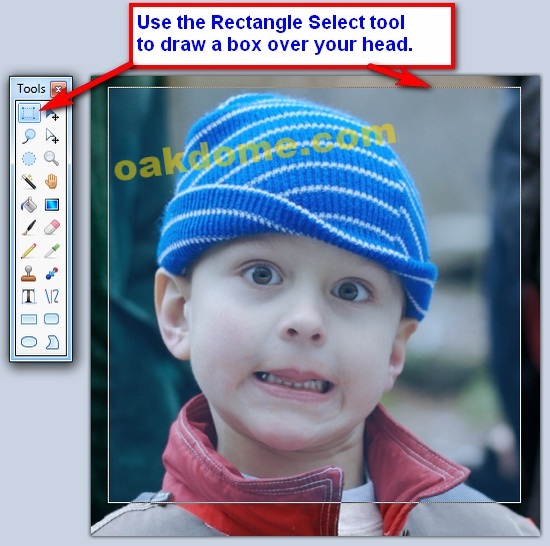
Crop your head.
You can use the keyboard shortcut Ctrl+Shift+X to crop the selection.
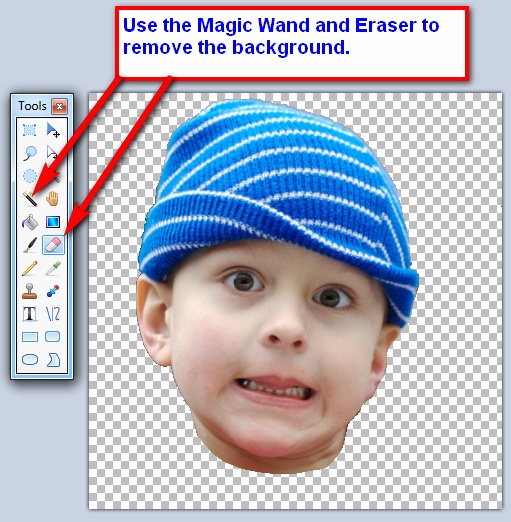
Remove the background behind your head with the magic wand and eraser. Select the magic wand and click in the background behind the head, use the keyboard delete key to delete the background. Use the eraser as necessary to remove additional background detail.
- Save the picture of your head with the (clear) background as a .png file to your 'my pictures' folder. This is important, a .png file will retain the clear background. A .jpg will not.
Here's how it should look when you finish removing everything around your head and neck:

Step Two:
Open the body picture you want to put your head on (File > Open).
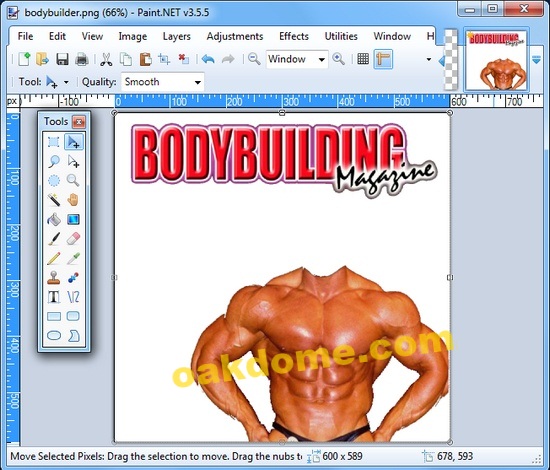
Step Three:
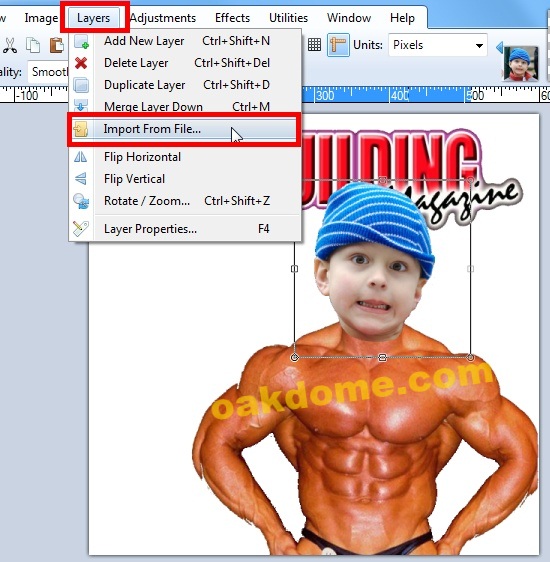
Add your head to the body. (Layers > Import From File).
The head shot picture is added as a new layer on the body picture. You can grab the handles on the corners or sides to change the size of the picture slightly if needed.
Done!

headshot photo by DeaPeaJay under Creative Commons Attribution Share Alike License